
Accessing, signing & completing the actions on the Document
Step 1: Accessing the Document
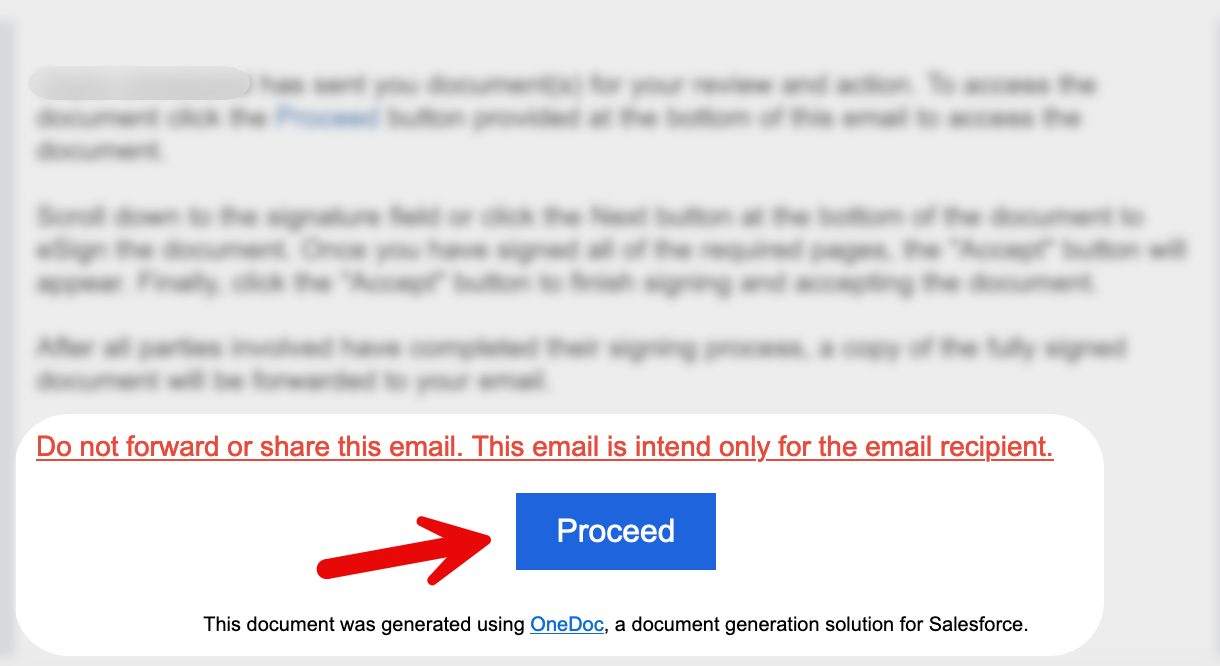
Click the 'Proceed' Link: To open the document, begin by clicking the 'Proceed' link received in your email. This link will redirect you to the document within OneDoc.
Step 2: Navigating the Document
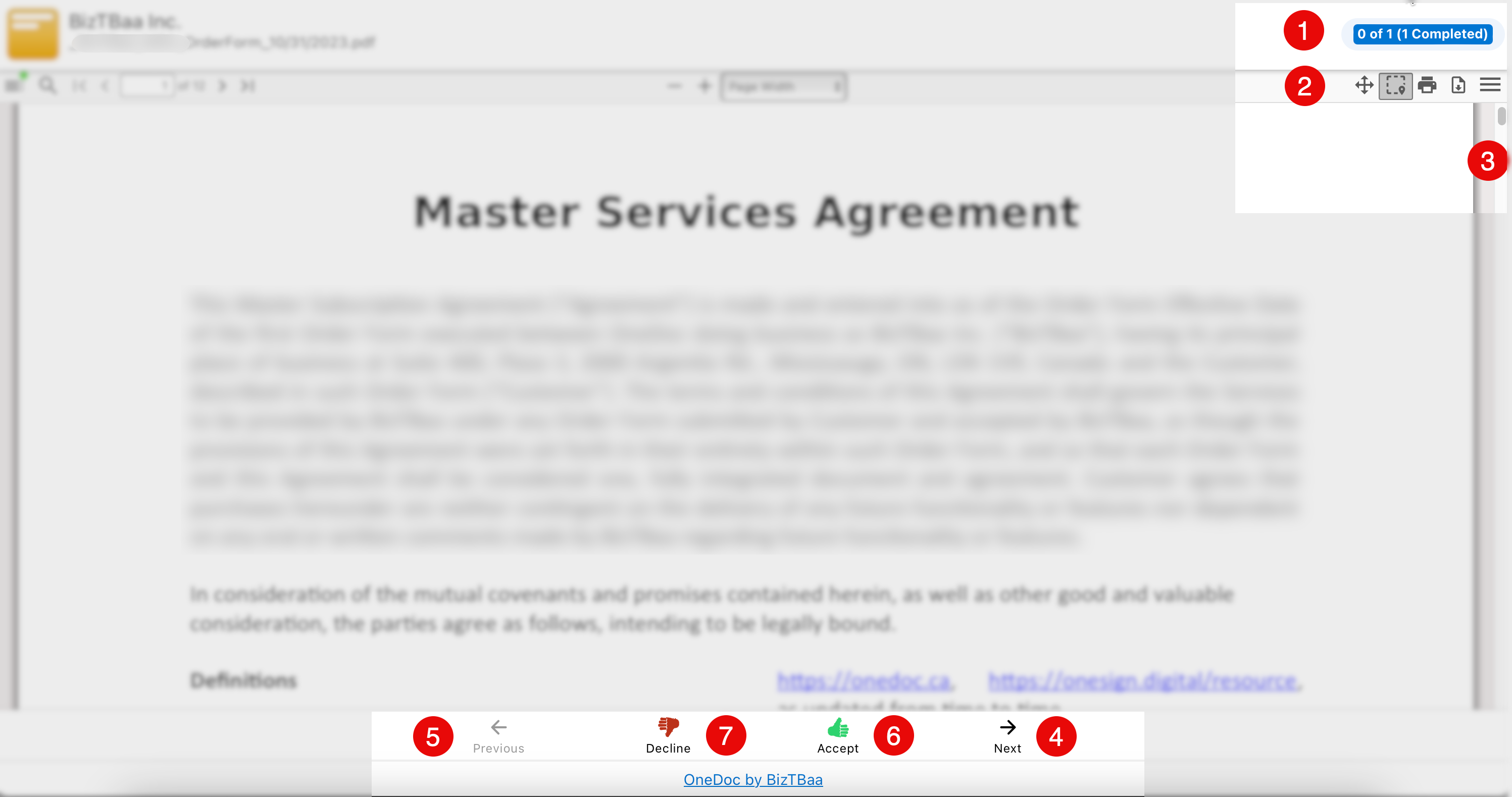
- The number of activities that the user who received the document must complete on the document. For instance, if the user needs to sign or fill out any fields on the document, each of these steps is an action. The screenshot above shows there is only one action, which is completed by the user.
- The document can be printed or downloaded by the user by using the appropriate icons provided.
- The user will be able to navigate the document by scrolling the page.
- By selecting the 'Next' button, the user will be able to rapidly move on to the next action in the document.
- By pressing the 'Previous' button, the user can rapidly return to the previous action in the document.
- If the user has completed all needed actions, the 'Accept' button will be activated or displayed for the user to accept the document by clicking the 'Accept' button.
- By pressing the 'Decline' button, the user will be able to decline the emailed document.